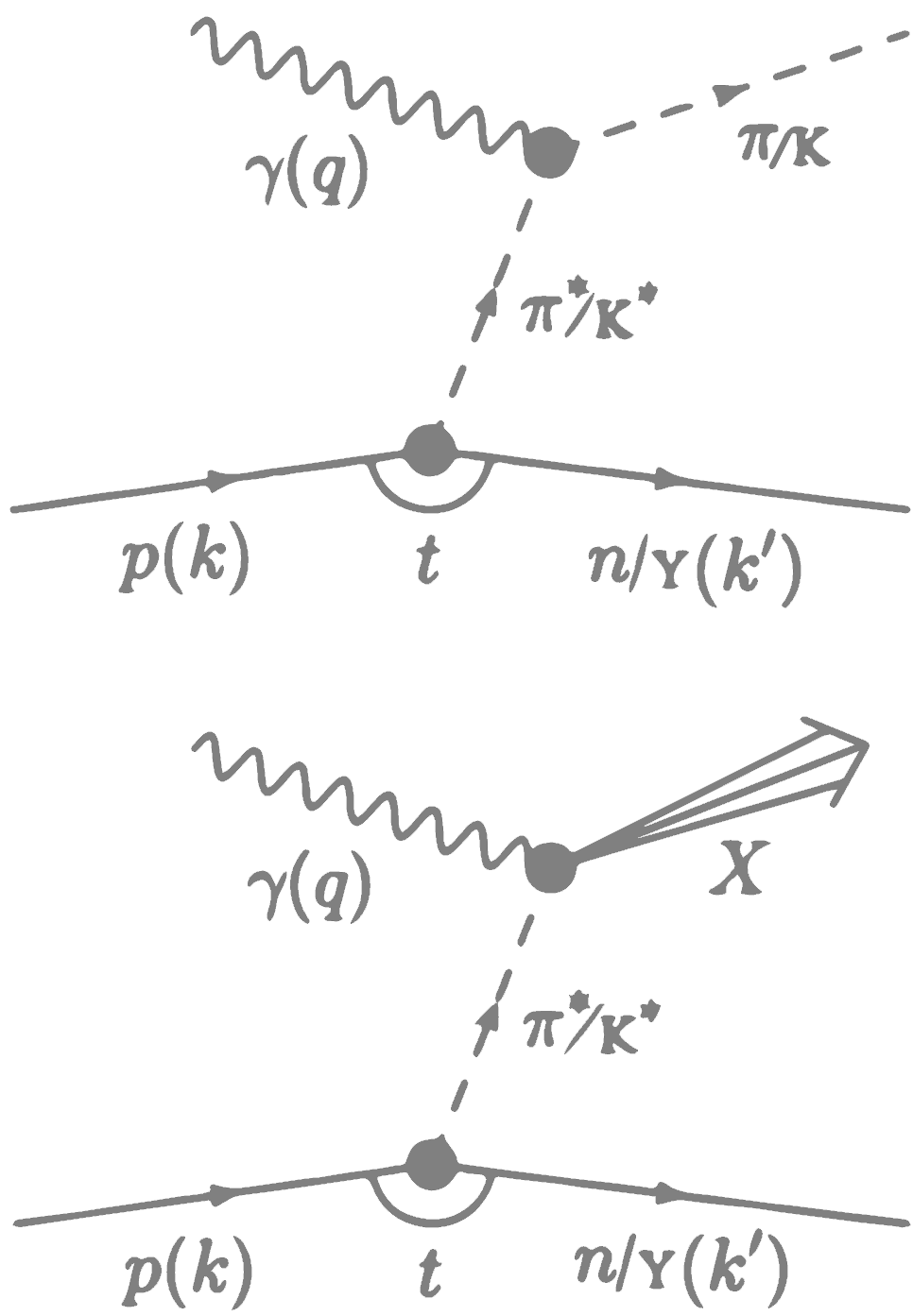
Managing website
The website is:
- a part of the meson-structure repository. Sources at docs/
- updated automatically on every commit to the
mainbranch - if there are errors building the website, they will be visible on the GitHub Actions page
- built using VitePress and hosted on GitHub Pages
Directory Structure
- All website content is stored in docs/
- Side menu is defined in docs/.vitepress/config.ts
- Images/resources and markdown texts are separated in directories (but all are inside docs/).
- Markdown/Text files are stored in
docs/... - Images are stored in
docs/public/...
bash# text: docs/campaign-YYYY-MM/my-study.md # images: docs/public/analysis/campaign-YYYY-MM/my-study/5x41/01_example.jpg- VitePress automatically copies all files from
docs/public/to resulting site root during the build process. So to reference an image one can
markdown# image references (without docs/public):  - Markdown/Text files are stored in
Analysis results
According to the above (and also EIC guidelines)
Place analysis markdown documentation in:
docs/campaign-YYYY-MM/<analysis-name>.mdExample:
docs/campaign-2025-08/acceptance.md
docs/campaign-2025-08/acceptance_ff.md
Place plots by beam energy in:
docs/public/analysis/campaign-YYYY-MM/<analysis-topic>/<beam-energy>/Example:
docs/public/analysis/campaign-2025-08/acceptance/5x41/01_example.png
docs/public/analysis/campaign-2025-08/acceptance/10x100/01_example.png
Reference images in markdown files, you use absolute paths starting from
docs/public/:Example:
If image is located on the disk at:
docs/public/analysis/campaign-2025-08/acceptance/5x41/01_example.pngReference it in markdown as:
markdown
Naming Conventions
Files: Use lowercase with underscores
acceptance_study.mdlambda_decay_kinematics.md
Images: Prefix with numbers for ordering
01_q2_distribution.png02_t_spectrum.png03_xbj_correlation.png
Vue Components for Analysis Pages
Custom Vue components are available to create interactive analysis pages with energy comparison features. Components are located in docs/.vitepress/theme/components/.
PlotCompareViewer & VerticalComparePlot
These components work together to display plots across different beam energies with comparison capabilities.
Features:
- Configure plot sources (paths) per page - no hardcoded paths
- Automatically generates dropdown options for single energies and all pairwise comparisons
- Global selector controls all plots on the page
- Each plot also has an individual selector for flexible viewing
- URL sharing: Selected mode is synced to the URL query parameter (
?mode=...), allowing you to share links to specific views
Basic Usage:
<script setup>
const sources = {
  '5×41 GeV': '/analysis/campaign-2025-08/acceptance/5x41/',
  '10×100 GeV': '/analysis/campaign-2025-08/acceptance/10x100/',
  '10×130 GeV': '/analysis/campaign-2025-08/acceptance/10x130/',
  '18×275 GeV': '/analysis/campaign-2025-08/acceptance/18x275/'
}
</script>

# My Analysis Page

<PlotCompareViewer :sources="sources">

## Section Title

<VerticalComparePlot
  plot-name="01_my_plot.png"
  title="My Plot Title"
  description="Description of what this plot shows."
/>

<VerticalComparePlot
  plot-name="02_another_plot.png"
  title="Another Plot"
/>

</PlotCompareViewer>
How it works:
- Define a
sourcesobject in<script setup>mapping labels to base paths - Wrap your content with
<PlotCompareViewer :sources="sources"> - Use
<VerticalComparePlot>for each plot, specifying only the filename
The sources object:
const sources = {
  'label1': '/path/to/label1/plots/',
  'label2': '/path/to/label2/plots/',
  // ... more labels
}- Keys are displayed directly as dropdown labels (use any format you want)
- Values are base paths where plots are stored
- Comparisons are auto-generated for all pairs (e.g., "label1 vs label2")
PlotCompareViewer props:
| Prop | Required | Description |
|---|---|---|
:sources | Yes | Object mapping labels to base paths |
default-mode | No | Initial mode to display (e.g., "5×41 GeV" or "5×41 GeV_vs_10×100 GeV") |
Example with default mode:
<PlotCompareViewer :sources="sources" default-mode="10×100 GeV">VerticalComparePlot props:
| Prop | Required | Description |
|---|---|---|
plot-name | Yes | Filename of the plot (e.g., "01_decay_points.png") |
title | No | Title displayed above the plot |
description | No | Description text below the title |
Example for a different campaign:
<script setup>
const sources = {
  '5×41 GeV': '/analysis/campaign-2025-10/kinematics/5x41/',
  '18×275 GeV': '/analysis/campaign-2025-10/kinematics/18x275/'
}
</script>

<PlotCompareViewer :sources="sources">

<VerticalComparePlot
  plot-name="q2_distribution.png"
  title="Q² Distribution"
/>

</PlotCompareViewer>
Example comparing campaign versions:
<script setup>
const sources = {
  'Campaign 2025-08': '/analysis/campaign-2025-08/results/',
  'Campaign 2025-10': '/analysis/campaign-2025-10/results/'
}
</script>

<PlotCompareViewer :sources="sources">

<VerticalComparePlot plot-name="summary.png" title="Summary" />

</PlotCompareViewer>
Generated dropdown options:
For sources with keys ['5×41 GeV', '10×100 GeV', '10×130 GeV', '18×275 GeV'], the dropdown will show:
- Single: 5×41 GeV, 10×100 GeV, 10×130 GeV, 18×275 GeV
- Comparisons: 5×41 GeV vs 10×100 GeV, 5×41 GeV vs 10×130 GeV, etc.
Sharing links with specific modes:
The selected mode is automatically synced to the URL via the ?mode= query parameter. This allows you to share direct links to specific views:
# Single energy view
https://yoursite.com/campaign-2025-08/acceptance?mode=5×41 GeV

# Comparison view
https://yoursite.com/campaign-2025-08/acceptance?mode=5×41 GeV_vs_10×100 GeV
When someone opens a shared link, the page will automatically display the specified mode.
Run locally
To preview the website on your local machine you need to have Node.js installed. If it is not installed yet, e.g. use volta:
Install dependencies (first time only):
cd meson-structure/docs
npm install
Start development server (run command in docs/ directory):
npm run devOpen your browser to the URL shown (typically localhost:5173) The development server will automatically reload when you make changes to markdown files.